Abstract:WikiTrade is hosting a demo trading competition for both new and experienced traders. This competition provides an opportunity to test your skills and try out new strategies before engaging in real-money trading.

Registration/Login Process
Users can choose to log in either “Using Phone Number or Email” or “Continue with WikiFX.”
1.On the client's homepage, click “Open Account” to access the account opening interface. Click “Demo ” to complete the account registration and login process.


Using Phone Number:
1.Click “Phone Number or Email” , fill in “Phone number”, click “Next”. Receive a verification code for your cell phone. Fill in the “Verification Code” to complete the login.


Using Email:
1.Registration must be completed before logging in.
Click “Register” to access the registration page. Check “By continuing,you agree to our User Agreement and confirm you have read our Privacy Policy.” Click “Use Email.”


Fill in the “password” and “Phone number”, click “Next” to complete the login.
Logging in via WikiFX app:
Click “Continue via WikiFX” , Click “Authorize and Log In” to complete the login.


Simulated Trading Account Opening & Linking Process
First-time Opening:
After logging in, automatically go to the homepage.
1.Click “Open Account” to access the account opening interface.
2.Click “Demo” carefully read the risk warning, check “I have read and agreed to the ‘IAP Service Agreement’ ” and click “Next.”


3.Enter the simulated trading account opening interface, and choose a trading platform for binding

Select the appropriate mode and click “Next”. Click “Go to Trade” to start the demo contest.


For existing WikiTrade users:
To participate in the activity, reset the simulated account first before reopening the account and selecting a trading platform.
1.On the app homepage, click the top-right corner “Switch Accounts.” and select “Demo Account.”


2.On the app homepage, click the top-left corner “Avatar” to enter the personal center. Click “Preference Settings.”


3.Click “Cancel the demo account” . Carefully read the reset account instructions, click “Reset Account,” and reset successfully. Then, you can reopen the account (refer to the steps for the initial account opening).


MT4 Account Connection Process
First-time Connection:
After entering the app, click “Open Account,” and choose to “Connect MT4 account”.

2. Select Server & Search for Server.

3. Enter MT4 Account & Enter MT4 Password.

4. Successfully connect and return to the homepage

Adding Additional MT4 Accounts:
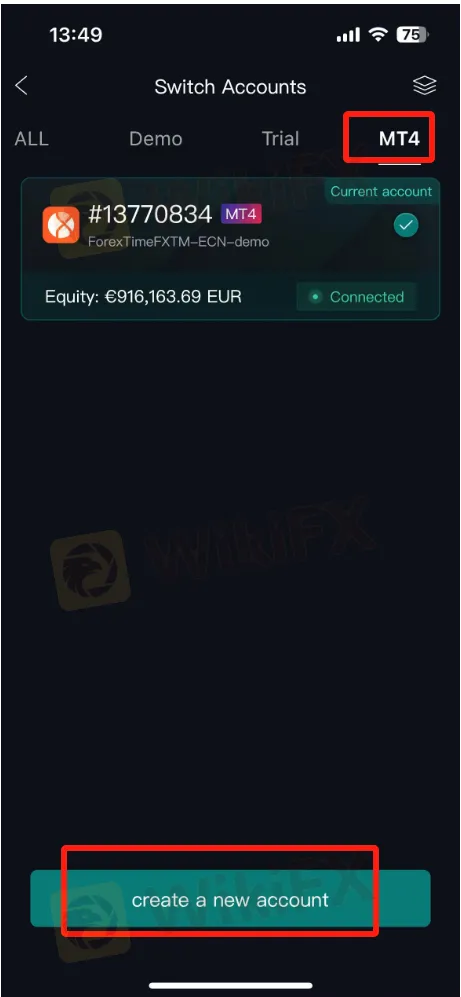
On the homepage, click the account switch button, select the MT4 account page, and click “Add New Account.”

2. Select Server & Search for Server.
3. Enter MT4 Account & Enter MT4 Password.

4. Successfully connect and return to the homepage